 Homedroid
Set up your Android home server.
Short video guides for Homedroid, from the first server start to mail, media and remote access. Each has written steps, requirements and notes for when something does not work.
Getting started
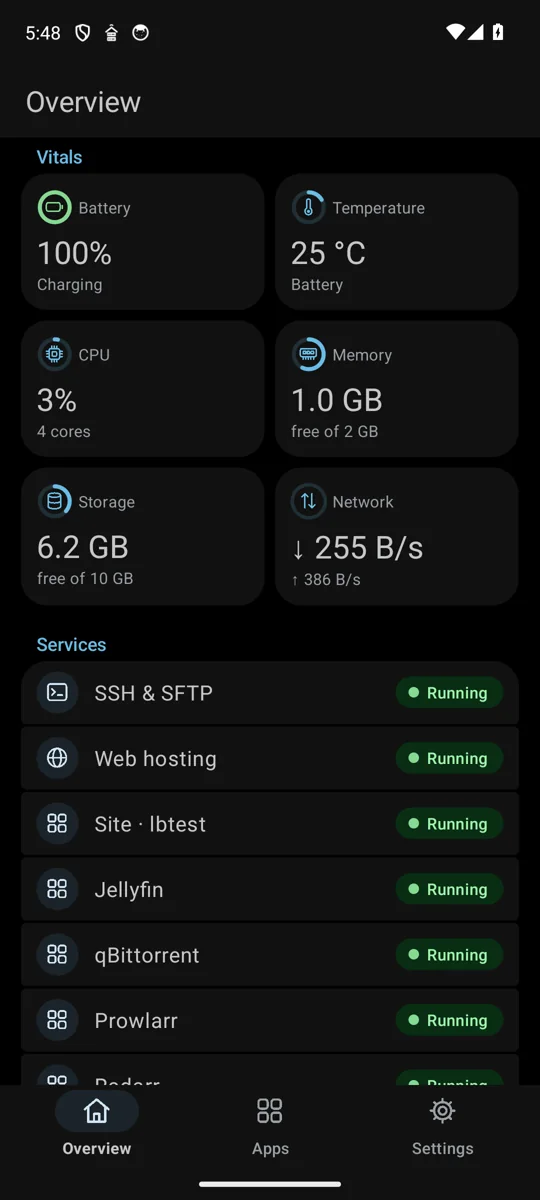
Set up Homedroid on an old phone
Install the APK, start the server, and open the dashboard from your computer.
Watch and follow the steps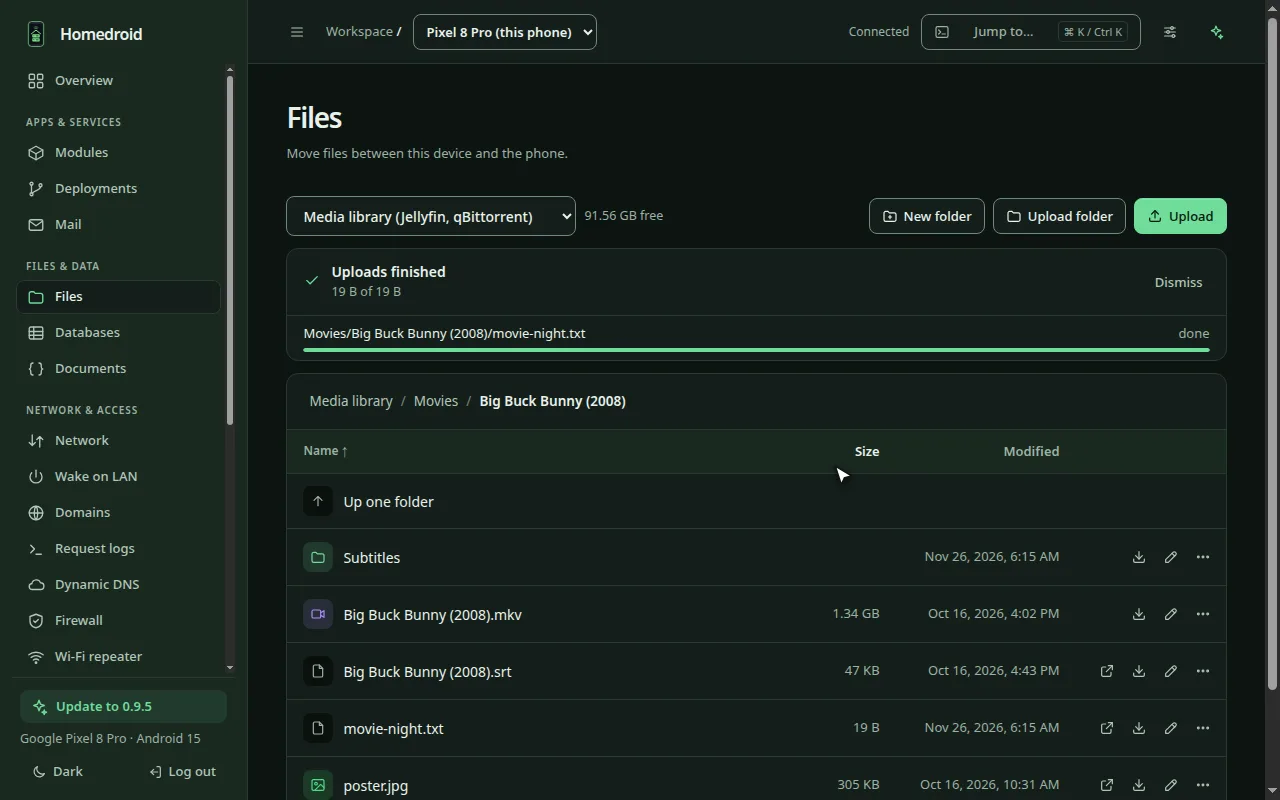
Use the phone as a NAS
Browse, upload, download and share files in the browser, and reach them over SFTP.
Watch and follow the steps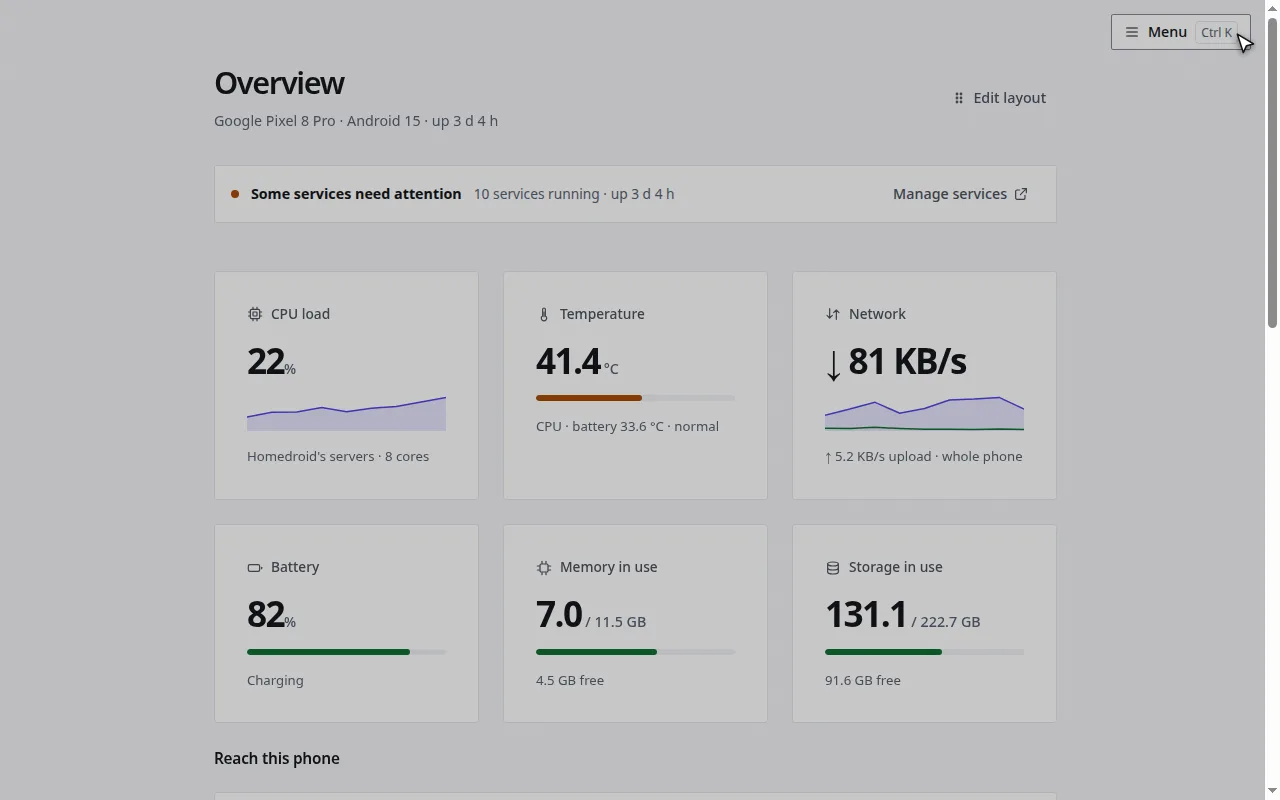
Customize the dashboard: layouts, themes and fonts
Try all six layouts and 13 themes, change the fonts, or start from a preset. Saved on the phone, so it follows you to every browser.
Watch and follow the steps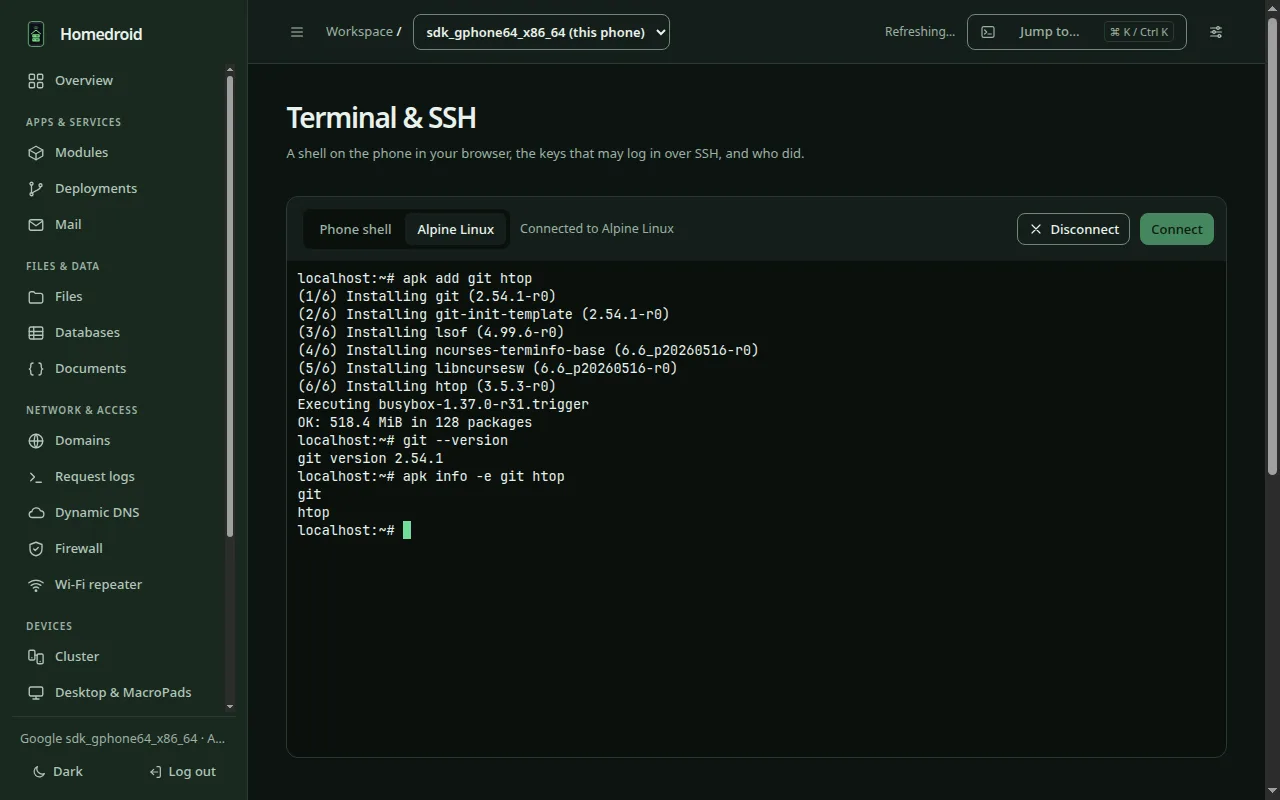
Install other Linux software with apk
Open the terminal, choose Alpine Linux and install packages such as git, Python or ffmpeg.
Watch and follow the stepsApps and media
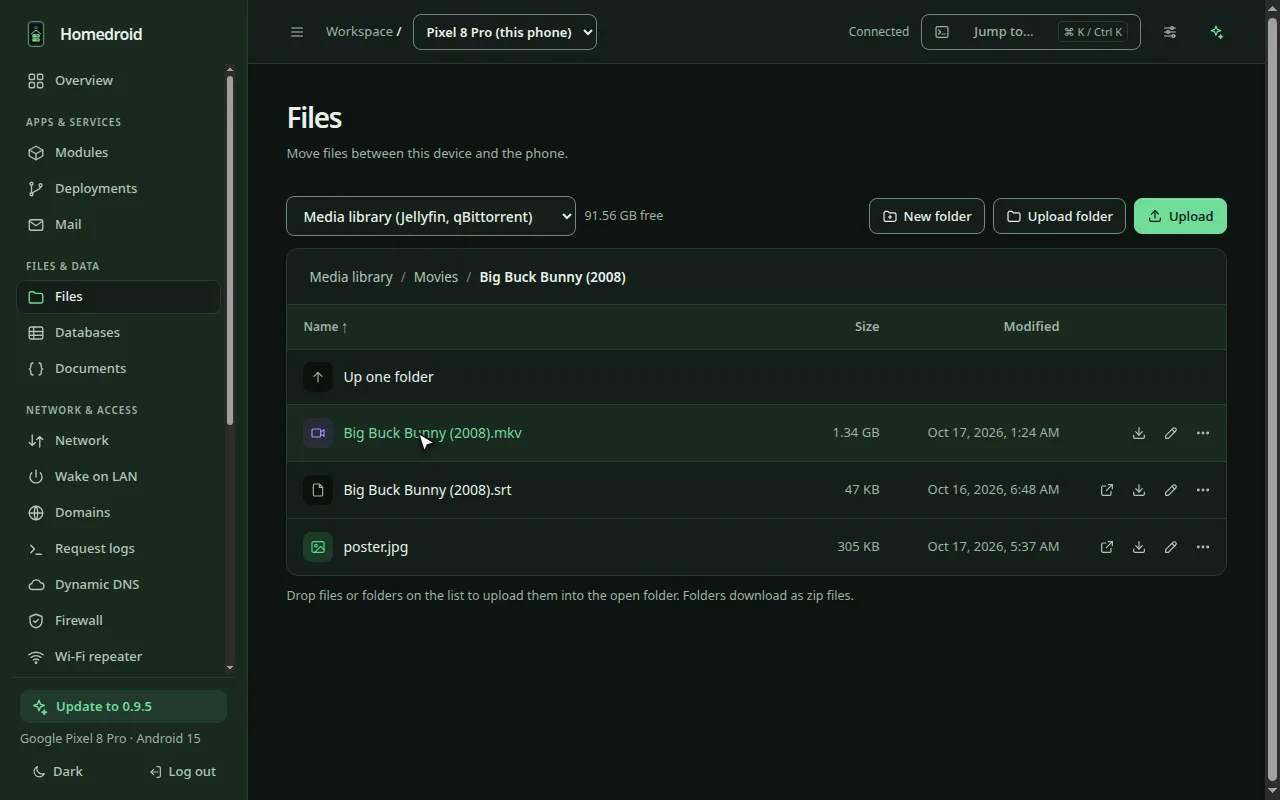
Install apps and choose where their data lives
Install Jellyfin or any app from the library, see what it needs in memory and CPU, and move its library to an SD card or USB drive.
Watch and follow the steps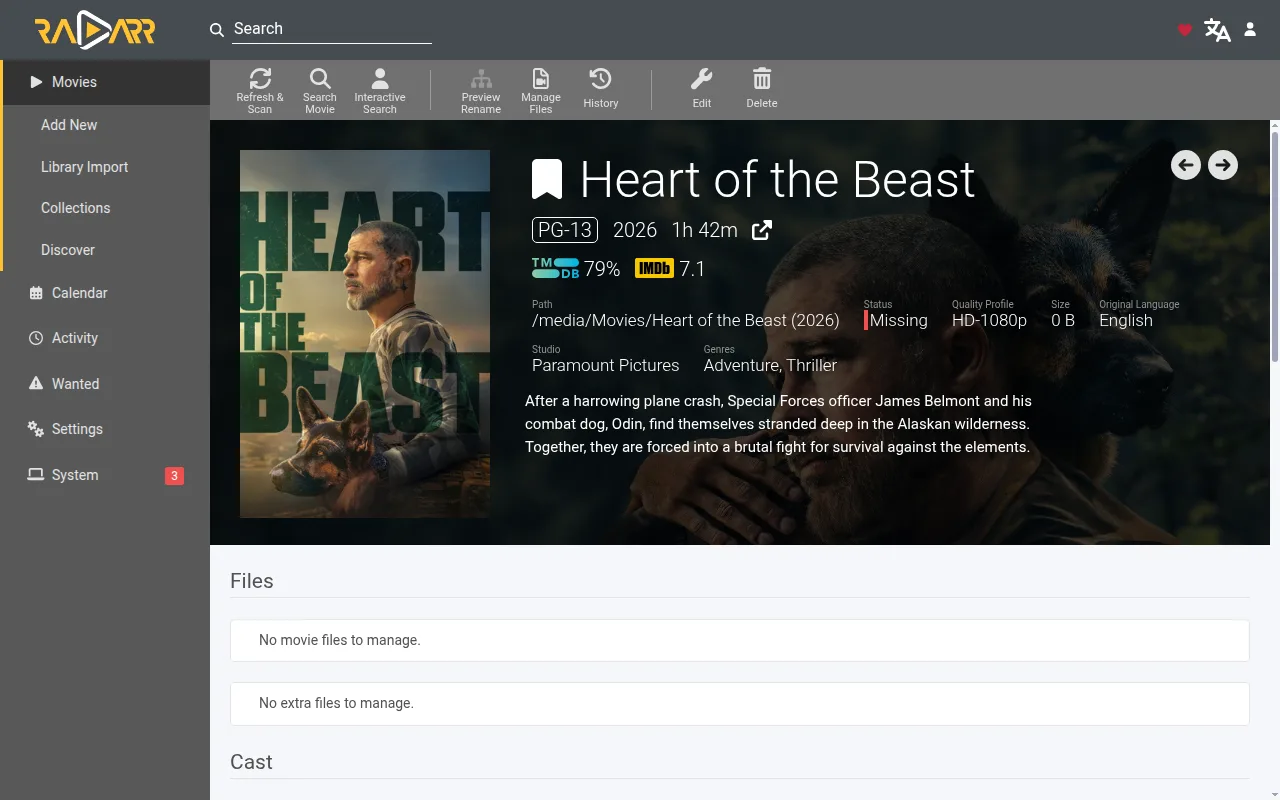
Automate movies and TV with Radarr, Sonarr and Jellyseerr
Install the media apps, request a movie in Jellyseerr, and watch it reach Radarr, qBittorrent and Jellyfin.
Watch and follow the steps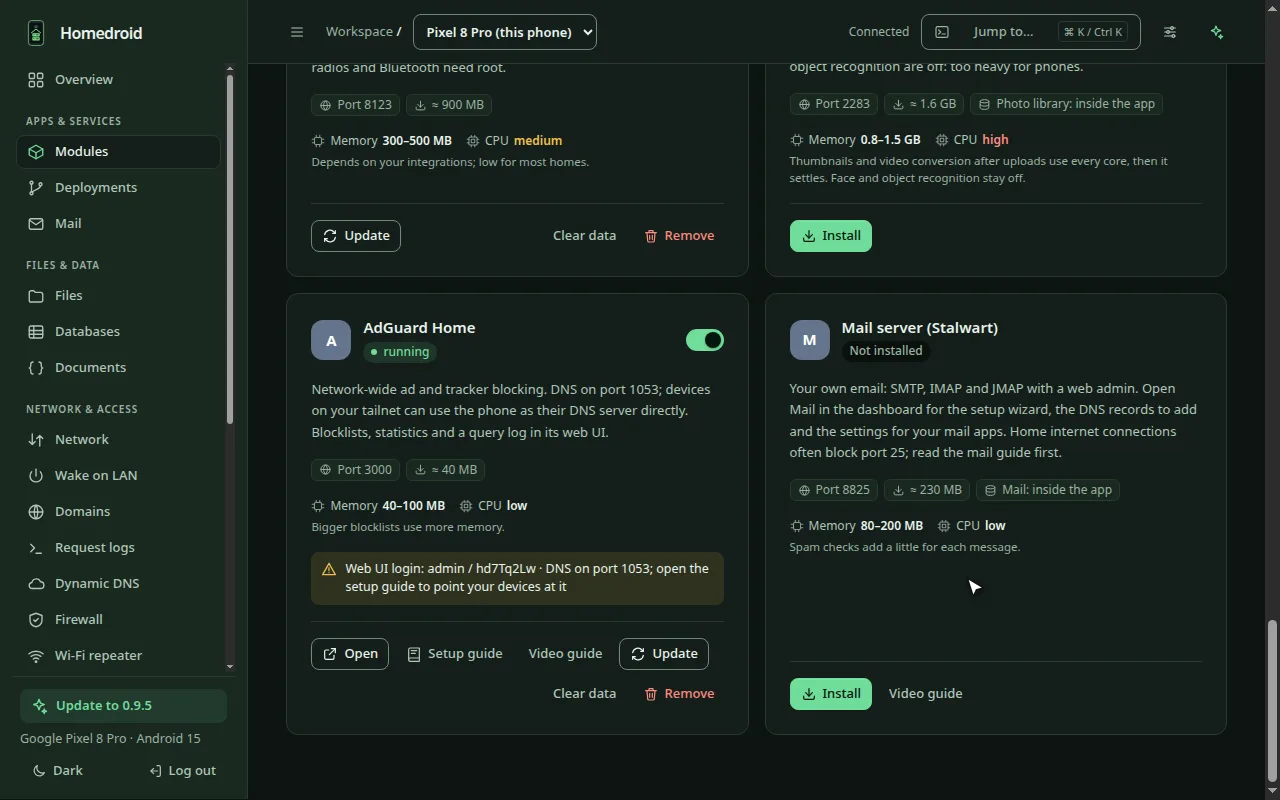
Block ads on every device with AdGuard Home
Install AdGuard Home, sign in, and point your devices or tailnet at the phone for DNS.
Watch and follow the stepsHosting and network
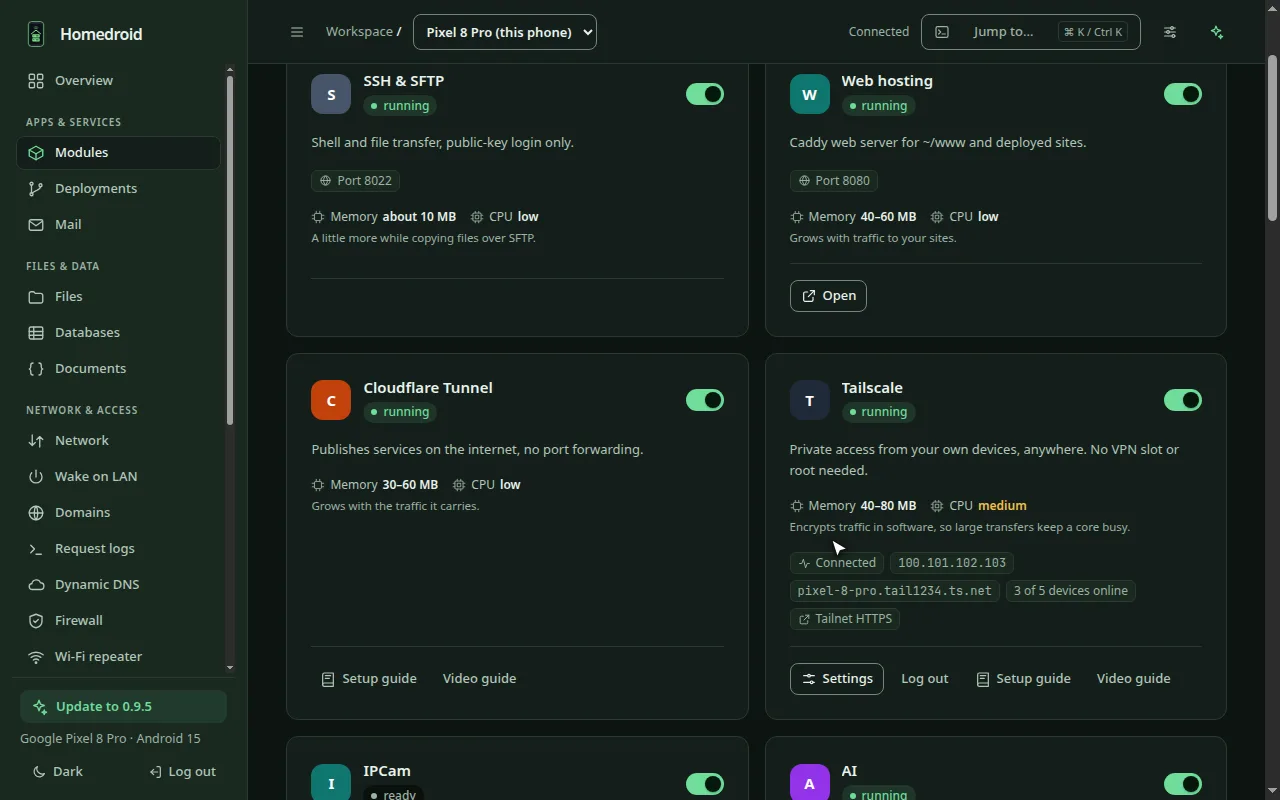
Reach your server from anywhere
Private access with Tailscale, or publish a site to the internet with a Cloudflare Tunnel, without opening ports on your router.
Watch and follow the steps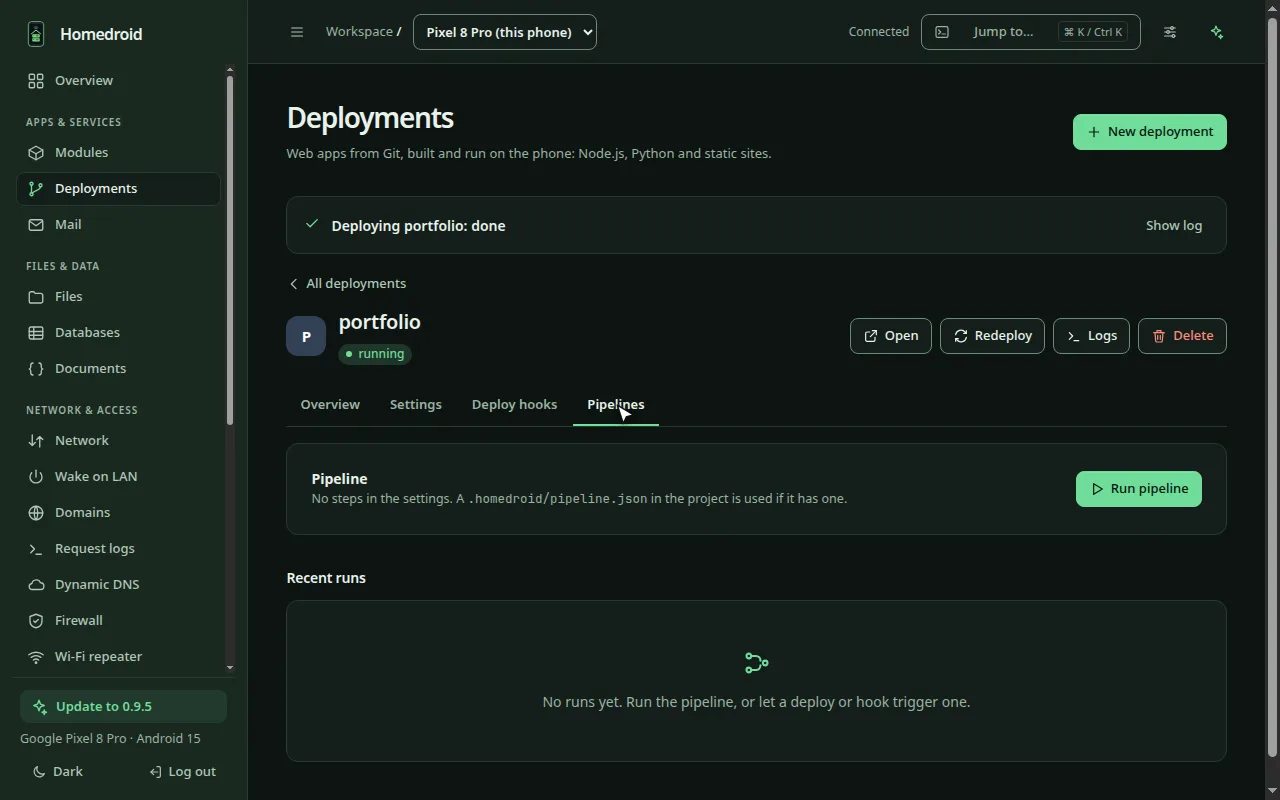
Deploy a website or app from GitHub
Point a deployment at a repository, watch the build pipeline, and redeploy on every push with a deploy hook.
Watch and follow the steps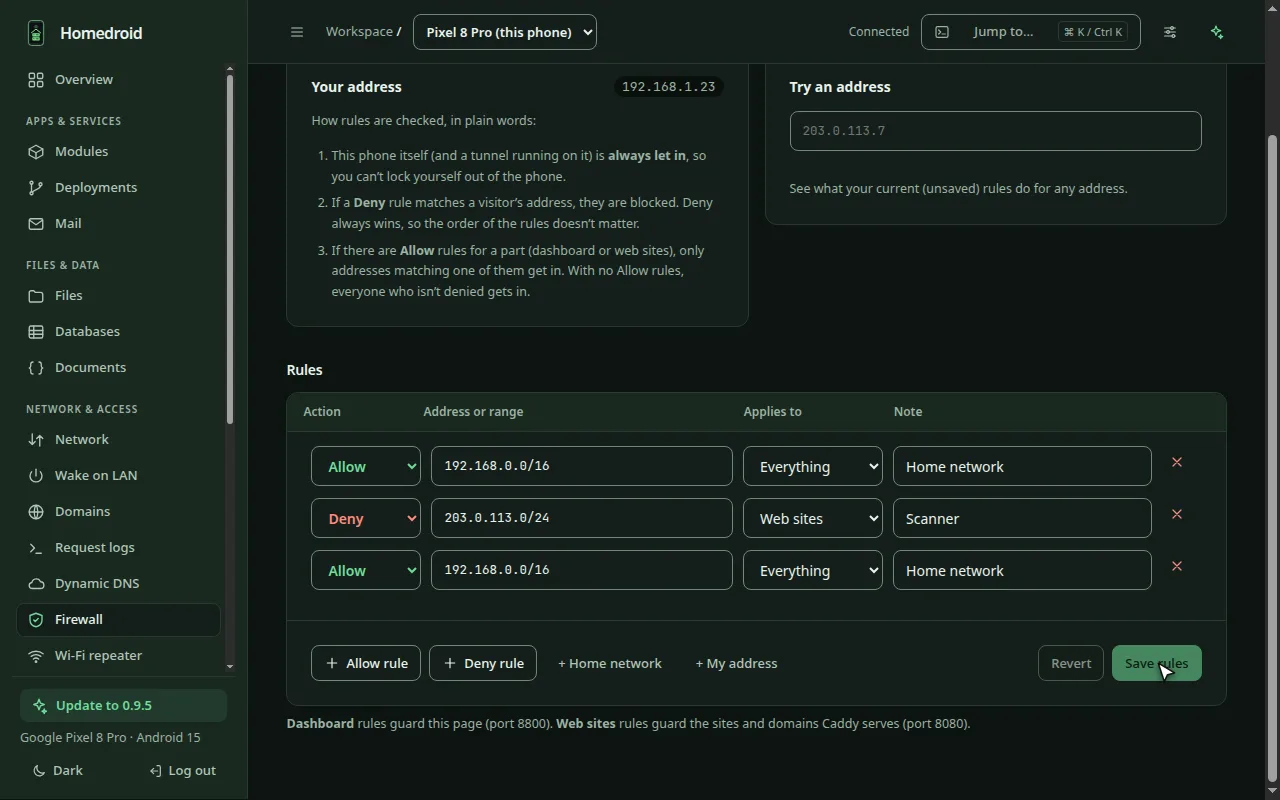
Use your own domain
Add a domain and prove you own it, keep dynamic DNS up to date, and limit who can reach your sites with the firewall.
Watch and follow the steps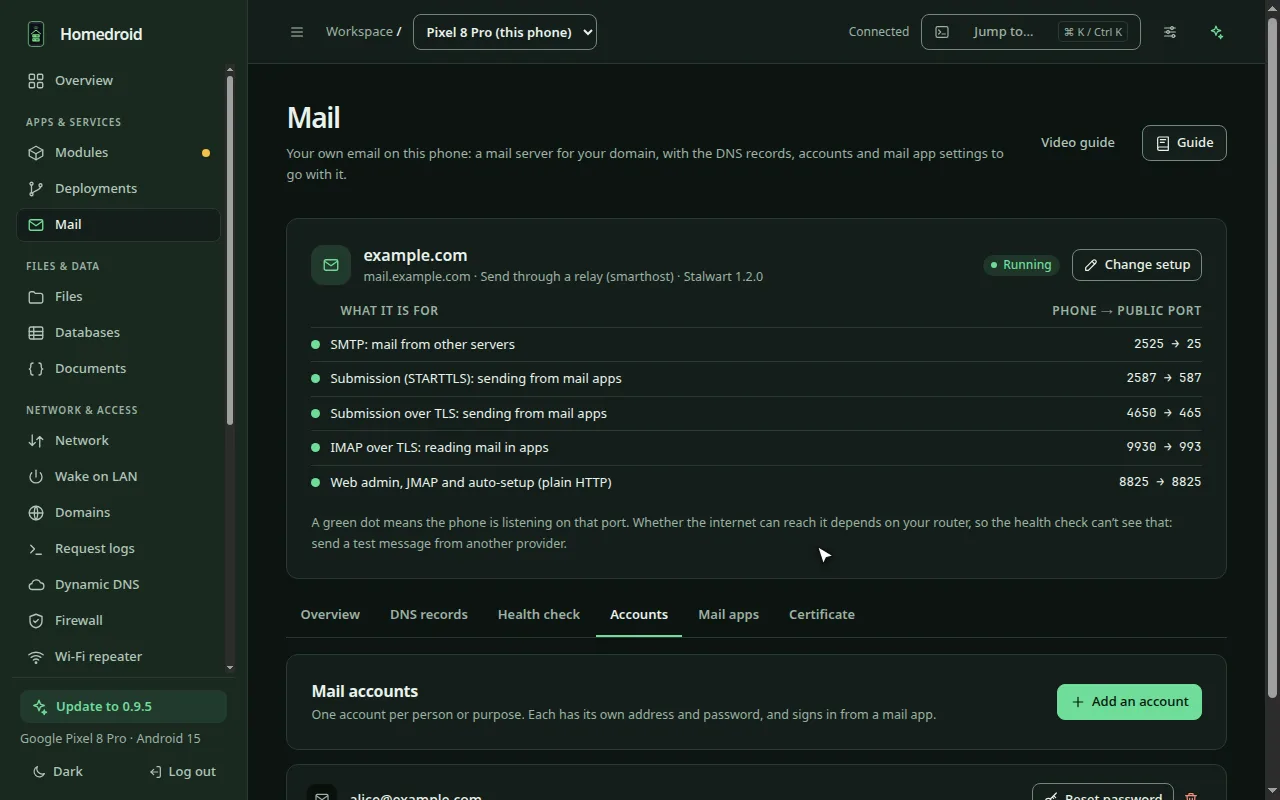
Run your own mail server
Install Stalwart, follow the setup, copy the DNS records it shows, and add mailboxes.
Watch and follow the steps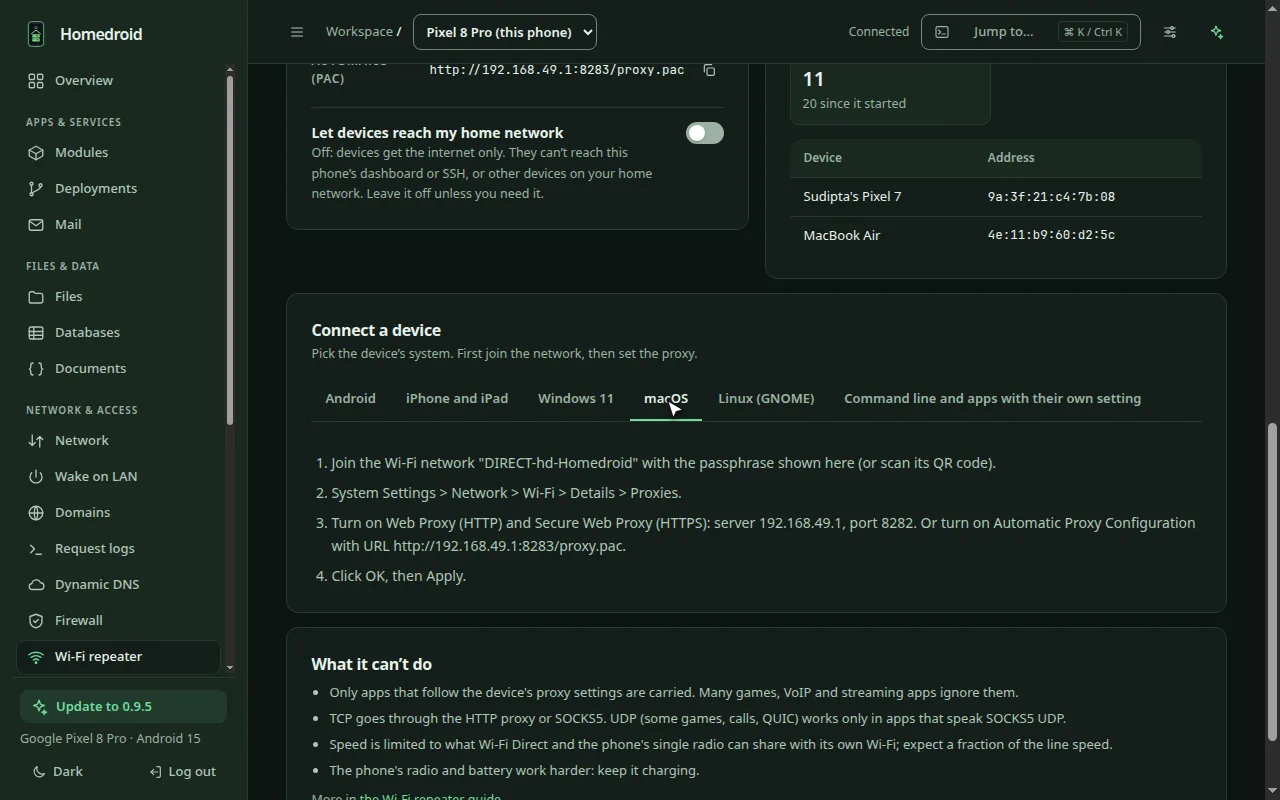
Share the phone's internet with a Wi-Fi repeater
Start the repeater network, then join it from a laptop or phone with the QR code and proxy settings.
Watch and follow the stepsAssistants and devices
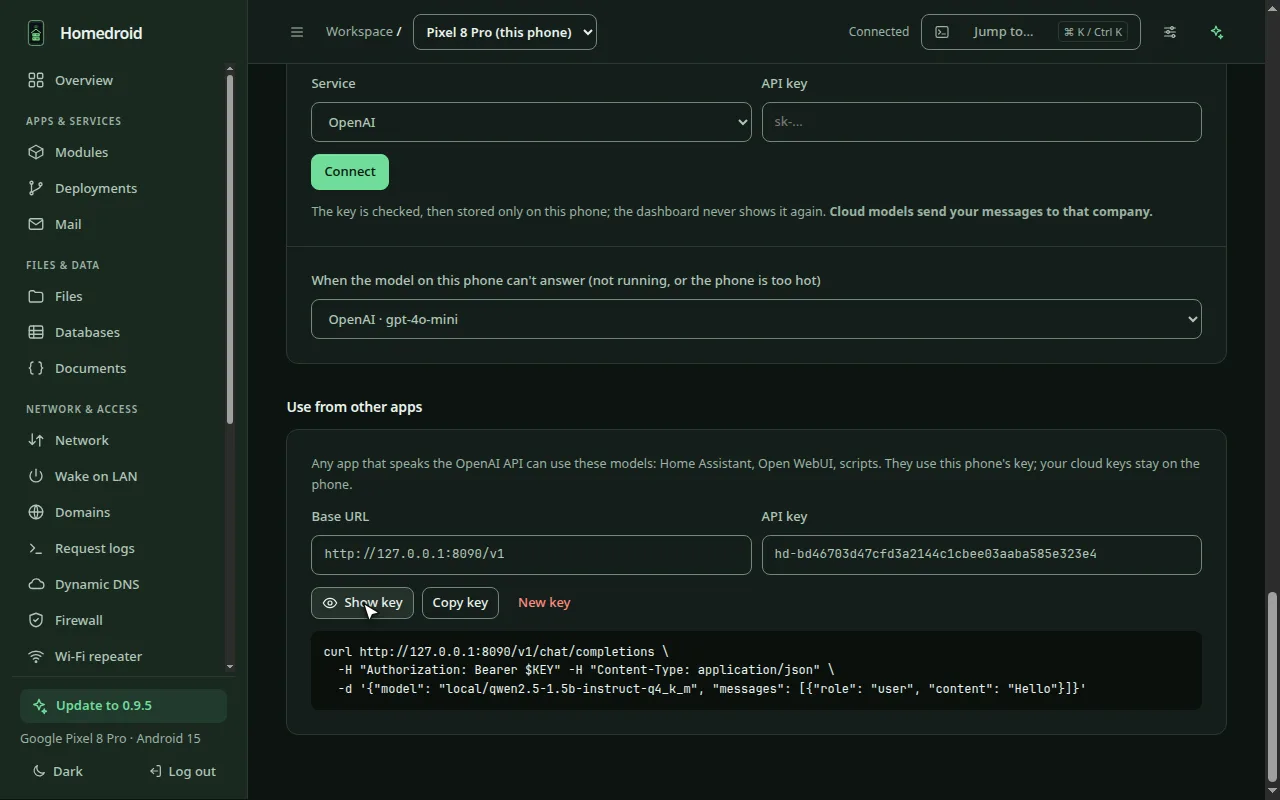
Run a local AI model on the phone
Download a model, chat with it, and use the OpenAI-compatible API from your other apps.
Watch and follow the steps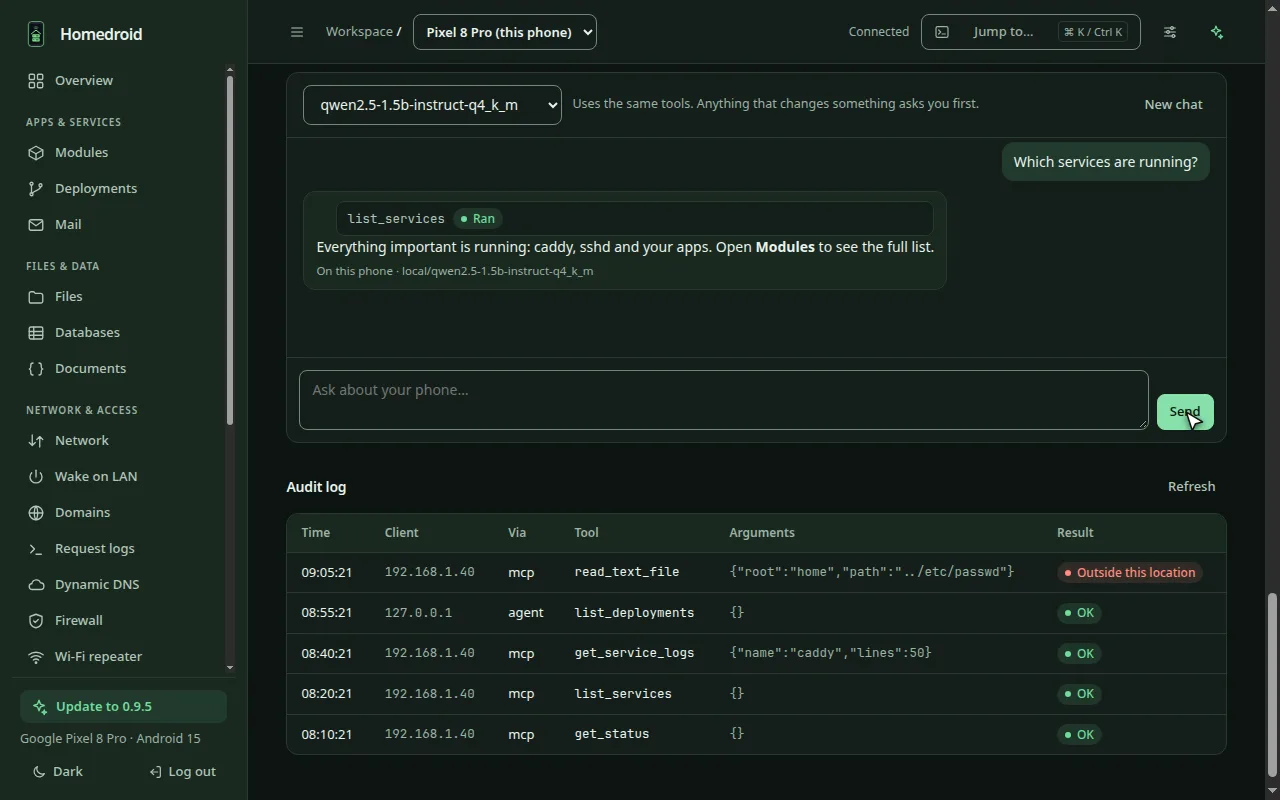
Let Claude, Cursor or VS Code manage the server
Turn on the MCP server, copy the connection settings, and decide which tools assistants may use.
Watch and follow the steps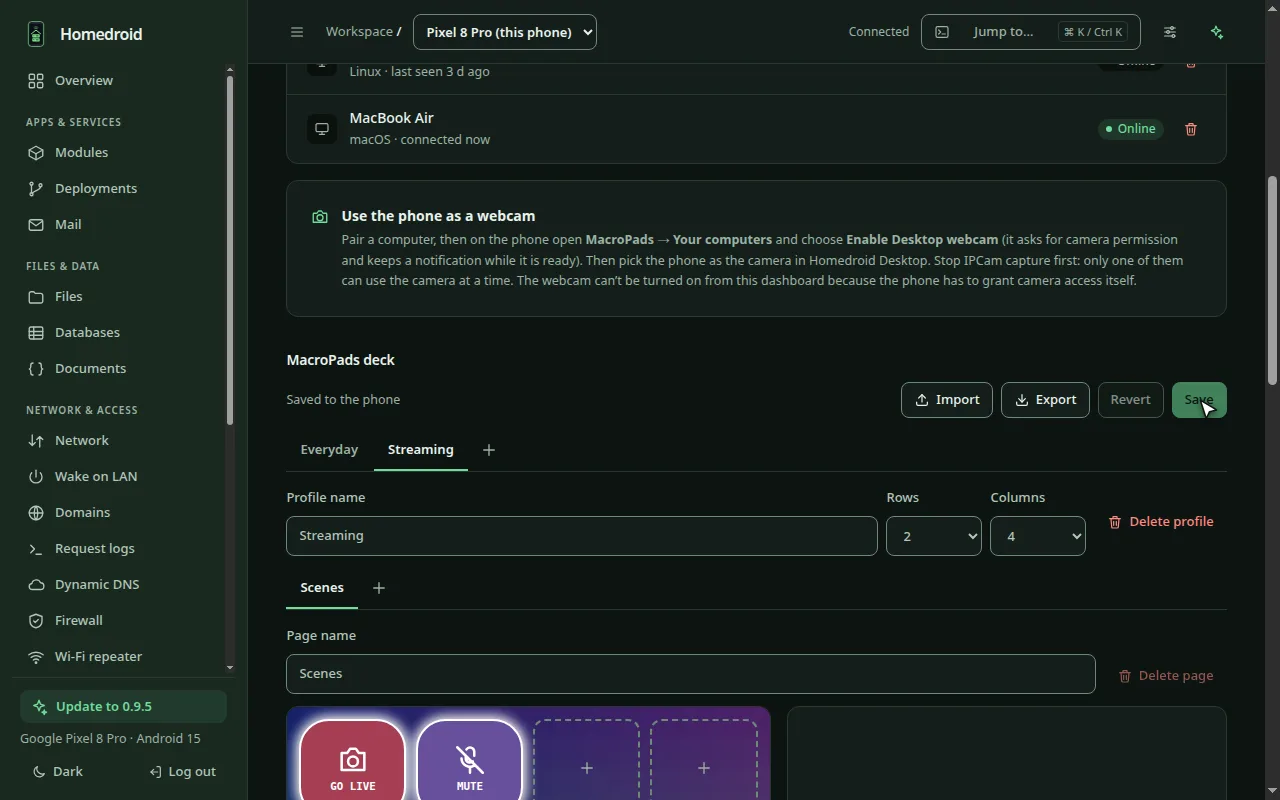
Pair Homedroid Desktop: MacroPads and the phone webcam
Pair your computer with a six-digit code, build a button deck, and use the phone as a webcam.
Watch and follow the steps