 Homedroid
Use your Android phone as a webcam on Linux, Windows or macOS.
Homedroid Desktop connects your Android phone’s camera to your computer. Linux gets a v4l2loopback webcam, Windows 11 gets an experimental virtual camera, and every platform gets a local stream for OBS.
Android 10+ Homedroid Desktop
Linux / Windows / macOS
Get Homedroid Desktop
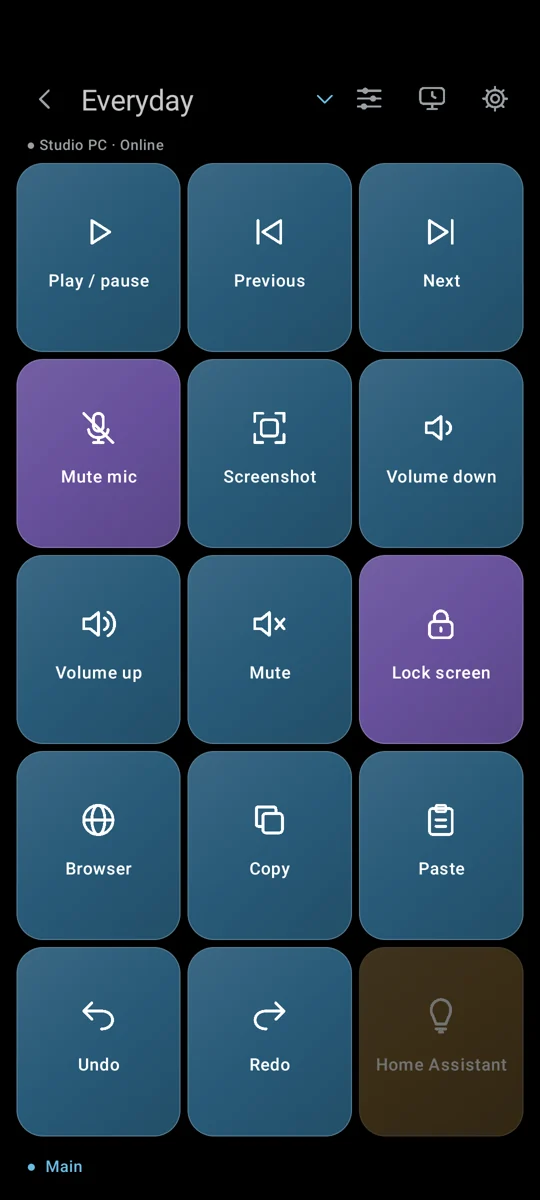
The Rust companion is about 1 MB on Linux and needs no separate language runtime. It also runs MacroPads buttons from your phone.
Choose your operating system and CPU. All four downloads stay available.
Get Homedroid Desktop from the 0.9.6 beta release
Set up your Android phone as a webcam
- Start Homedroid’s server. Open Tools → MacroPads, tap the computer icon, then Pair a computer.
- Unpack and run Homedroid Desktop. Its local control page opens at
http://127.0.0.1:8891. Enter the phone address and six-digit code; the code expires after five minutes. - On the phone, enable Desktop webcam and grant camera permission. Choose a camera, resolution and frame rate in the companion.
- Choose Homedroid Camera in your calling app, or add the stream to OBS.
homedroid-desktop pair 192.168.1.20 123456
homedroid-desktop webcam --camera back --size 1280x720 --fps 30
homedroid-desktop status
Linux webcam: v4l2loopback
Install v4l2loopback for your distribution, then load it. On Debian or Ubuntu:
sudo apt install v4l2loopback-dkms
sudo modprobe v4l2loopback exclusive_caps=1 card_label="Homedroid Camera"
Without the kernel module, the local preview and network stream still work. This computer-side module does not require rooting the phone.
Windows 11 virtual camera: experimental
Keep homedroid-desktop.exe and homedroid_vcam.dll in the same folder. From an administrator prompt, run homedroid-desktop.exe install-camera once. Then start the webcam normally. The virtual camera has been compile-checked, but not verified on real Windows hardware.
macOS, Windows 10 and OBS
Add http://127.0.0.1:8891/stream as an OBS Browser source or a Media Source with Local File disabled. Start OBS Virtual Camera to use it in calls. Homedroid does not ship a signed macOS camera extension.
Connection and camera limits
The computer connects to the phone’s dashboard port, 8800. Use a trusted LAN or Tailscale; direct HTTP does not encrypt frames or pairing tokens. The local control page binds only to 127.0.0.1. A phone can serve one webcam stream at a time, and IPCam and Desktop webcam cannot hold the camera together.
Camera size and frame rate depend on the phone. Slow connections get the newest frame instead of a growing queue. The Camera panel in Homedroid Desktop sets zoom, torch, focus (including tap to focus), exposure, white balance, rotation and mirroring, and shows only the controls your phone's camera supports. Save a setup as a preset, like "Desk" or "Low light".
Full Desktop setup, permissions and troubleshooting · Desktop protocol